❮ All Topics | English | Deutsch | Chinese
Multicam Setup
In Brief
[!] Mutlicam requires Inertia Wheels firmware 2.3.2 or greater.
One set of Inertia Wheels may connect to multiple Receivers.
Receivers can be assigned letters, A-G.
The new Inertia Wheels Multicam menu allows users to change which Receiver is actively being controlled.
[$] Inertia Wheels can communicate with all receivers via the Broadcast option.
[!] All Receivers must be connected to the same make and model of remote head.
Trial
Users may try the Multicam feature if they have multiple Receivers.
To do so, go to Menu > System > Multicam License and select 15 Minute Trail.
The Multicam menu will appear in main Menu.
After 15 minutes the Inertia Wheels will reboot automatically.
Install License
After purchasing a Multicam License, enter the emailed code in Menu > System > Multicam License.
Press Active License.
The wheels will reboot with the Multicam menu available.
Configuring Receivers
Using the Firmware Updater App, connect a Receiver ("RX") via USB.
Connect to the Receiver by using MOCO/Multicam > Open Port to RX and select the port of the RX.
[$] You will need to manually select the port. You can detect which port by closing this box, disconnecting the RX from USB, and then selecting Open Port to RX again. Any port(s) that is(are) no longer visible are likely the RX.
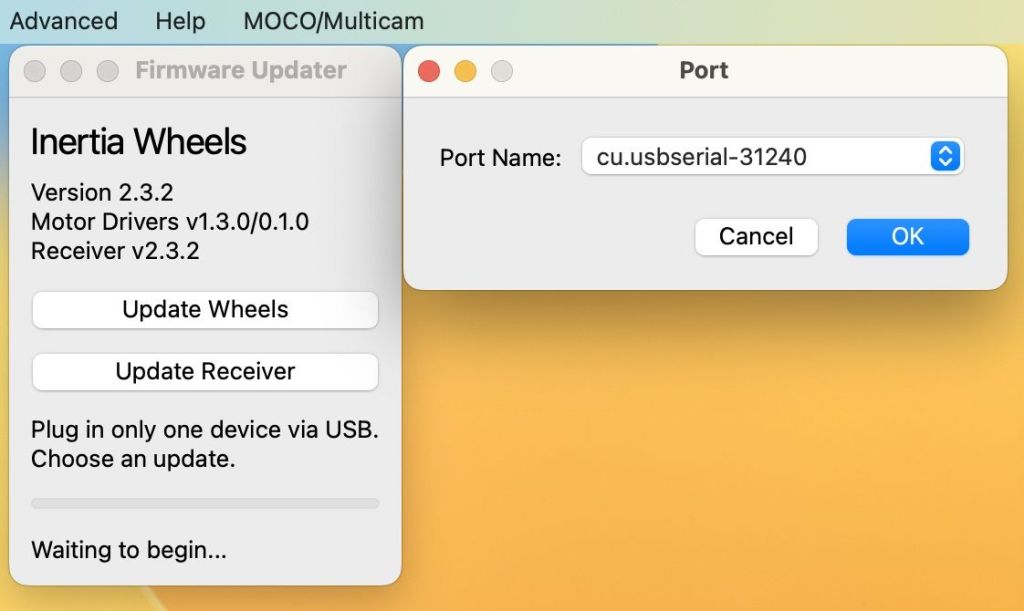
Select Advanced > Show/Hide Log to open the log window to see the activity.

You should see a message that it has opened a port.
Assign a letter to the Receiver with MOCO/Multicam > Set Receiver as [letter].

You will then see a notice if the letter has been properly assigned.
Repeat this as necessary for each RX.
Using Multicam
To use Multicam, in your Inertia Wheels, navigate to Menu > Multicam and select Enable Multicam.
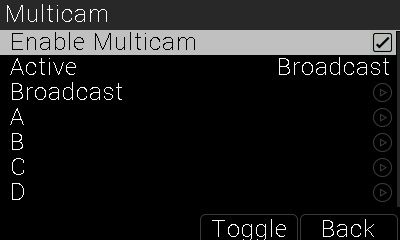
The Multicam Menu will appear.
The first item shows the Active camera.
[i] By default, whenever the wheels boot Broadcast is Active. This is to prevent confusion in the event a camera is selected that is not present.
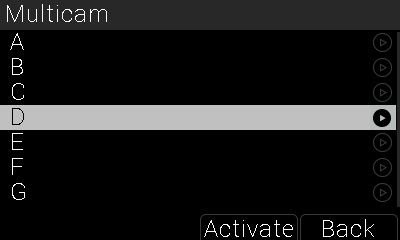
You can select cameras directly in this menu.
Add Multicam to Dashboard
You can optionally add cameras to the Dashboard in Menu > Dashboard.
Simply add the camera you want to the button you want.

You can also add the Multicam Menu to a Dashboard button.

Your dashboard will look like this, and allow you to select cameras or open the menu with single button presses.
