❮ All Topics | English | Deutsch | Chinese
Wireless 101
Introduction
The Inertia Wheels wireless system is complex and powerful. When setup properly, technicians have a powerful suite of tools available at their disposal to navigate complex and challenging wireless environments.
[i] For more information on wireless, visit the Wireless Overview.
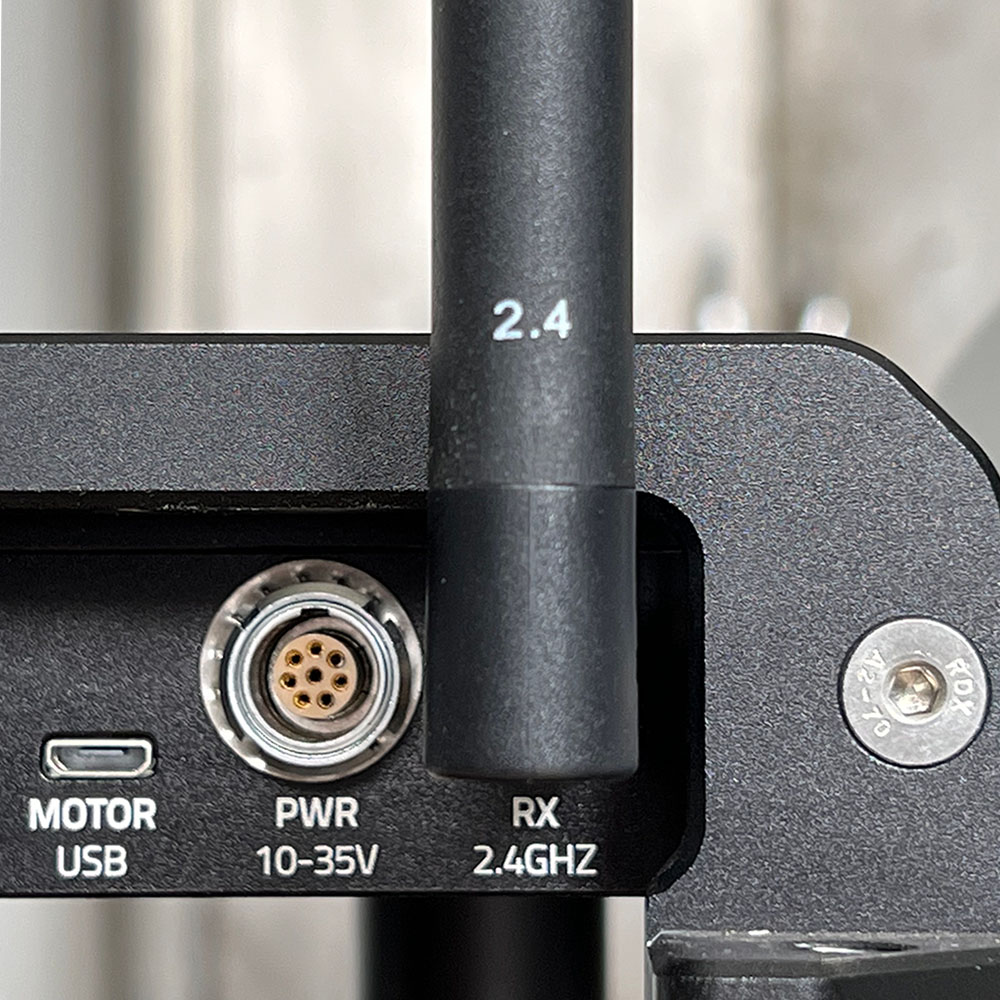
Plug the antennas in properly
The antenna labelled "868/915" goes in the "TX SUB-GHZ" port.
The antenna labelled "2.4" goes in the "RX 2.4GHZ" port.

Select the proper region settings
In Menu / Wireless / Region, select the region you are in.


If you are not in a region in the menu, reach out to Support for more information on local available wireless frequencies.
Perform a frequency scan
Select Menu / Wireless / Frequency scan to observe other traffic on frequencies.
The channel in blue in the middle is the currently selected channel. Lower is better.
Look for a channel with the lowest traffic.


[i] In this example, 914 would be the best channel to be on.
[$] Visit the Frequency Scan page to learn about advanced usage.
Select the best frequency
In Menu / Wireless / Frequency, select the frequency you observed in the frequency scan with the lowest traffic.


How to monitor wireless strength
On the dashboard, look at the wireless indicators in the top right.
-
dBm is the signal strength.
-
Typical signal strength is -50 to -80 dBm.
-
-120 dBm is the absolute noise floor of our receiver. The closer you get to it, the weaker the performance.
-
-
MHz is the current frequency you are on.
-
p/s is the number of packets that are reaching the receiver every second.
-
In Fast mode, 100 means all packets were received.
-
In Range mode, 50 means all packets were received.
-
-
XR (not shown) indicates that the downlink is not receiving signal. This is not necessarily bad, but signal checking should be done visually based on the gimbal's responsiveness and the light on the receiver.
