❮ All Topics | English | Deutsch | Chinese
Troubleshooting Wireless
Introduction
If you are experiencing issues with wireless, it is good to start with fundamental knowledge as to how the wireless works.
[!] Most wireless issues are resolved when the user gains the fundamental knowledge to solve the issue. Visit the Wireless Overview page to gain fundamental knowledge.
Use "Range Mode"
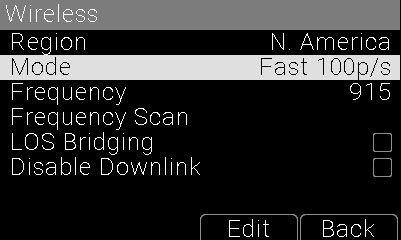
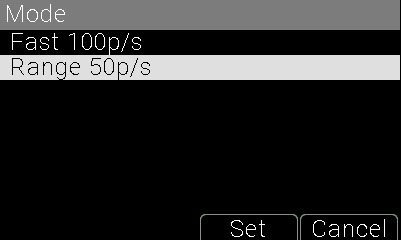
Use Menu / Wireless / Mode and select Range.
[i] This will decrease the update frequency from 100 to 50 packets per second, but at the same time increase the ability for the signal to cut through interference.
Enable "LOS Bridging"
Turn on Menu / Wireless / LOS Bridging
[i] This feature is available in all firmware after 1.2.0.
LOS Bridging will tell the receiver to monitor the signal, and in the event of signal loss, the receiver will use the last known velocity to maintain the gimbal's trajectory. Once signal returns, the receiver will blend the accurate position with the assumed position over a short period of time.
[i] LOS Bridging is helpful for short bursts of interference.
[!] With long bouts of interference, LOS Bridging can appear as ghost movement where the gimbal will just continue to move, despite attempts at control.

When the Inertia Wheels cause interference use Disable Downlink
When the Inertia Wheels cause interference on 2.4GHz frequencies, you can use the "Disable Downlink" option to turn off the 2.4GHz radio. This is helpful if the Inertia Wheels are interfering with sound, wifi, or other on-set radios.
Turning off the downlink can cause issues with the system if over a long period of time. We recommend turning on the downlink before changing wireless frequencies and whenever rebooting either the gimbal, receiver, or wheels. It only needs to stay on briefly for all system settings to sync.
You should not turn off the downlink when using anything that utilized the Inertia Wheels API.